Create the cliente table
Goal: create the table with a right-click, as in HeidiSQL or DBeaver.
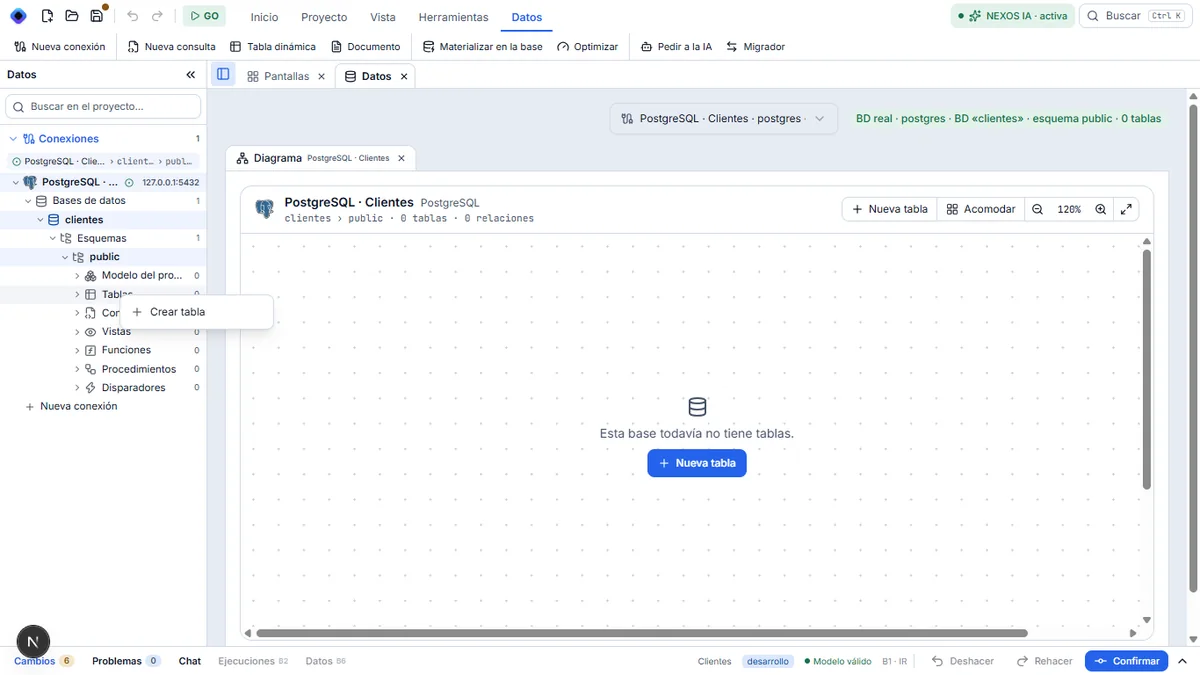
1. Choose Crear tabla
In the tree, right-click Tablas and choose Crear tabla.
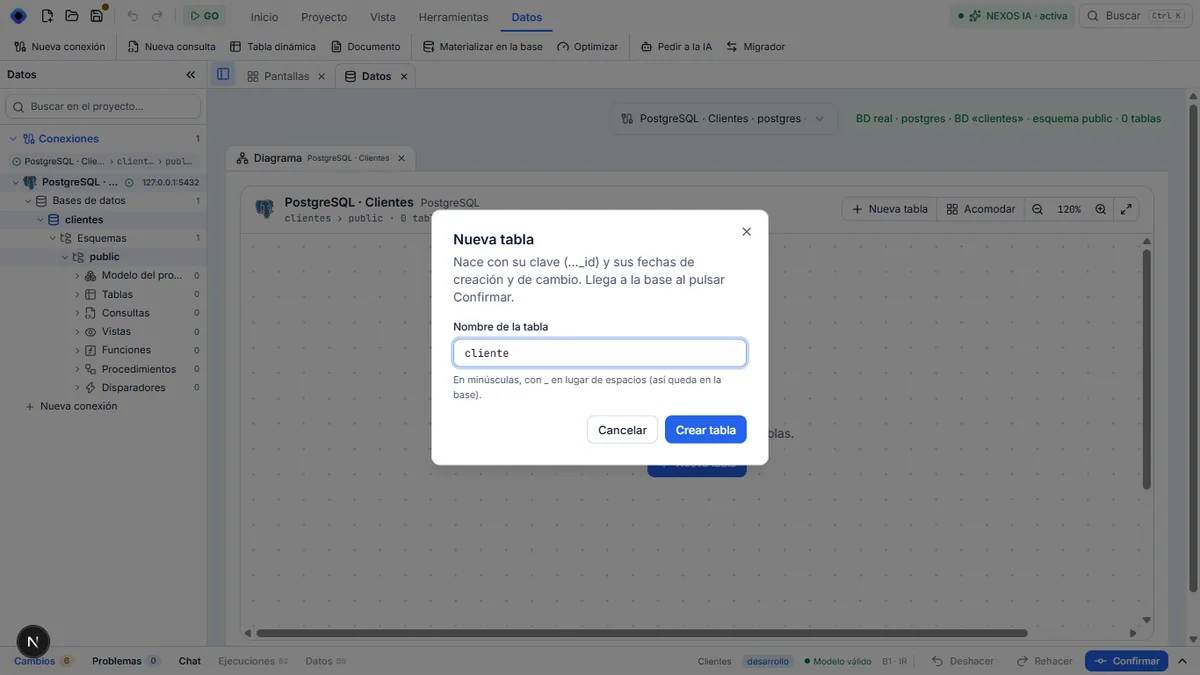
2. Name the table
In Nombre de la tabla, type cliente. This is the name as it will remain in the database: lowercase, with _ instead of spaces. If you type Cliente Especial, the database will receive cliente_especial. Click Crear tabla.
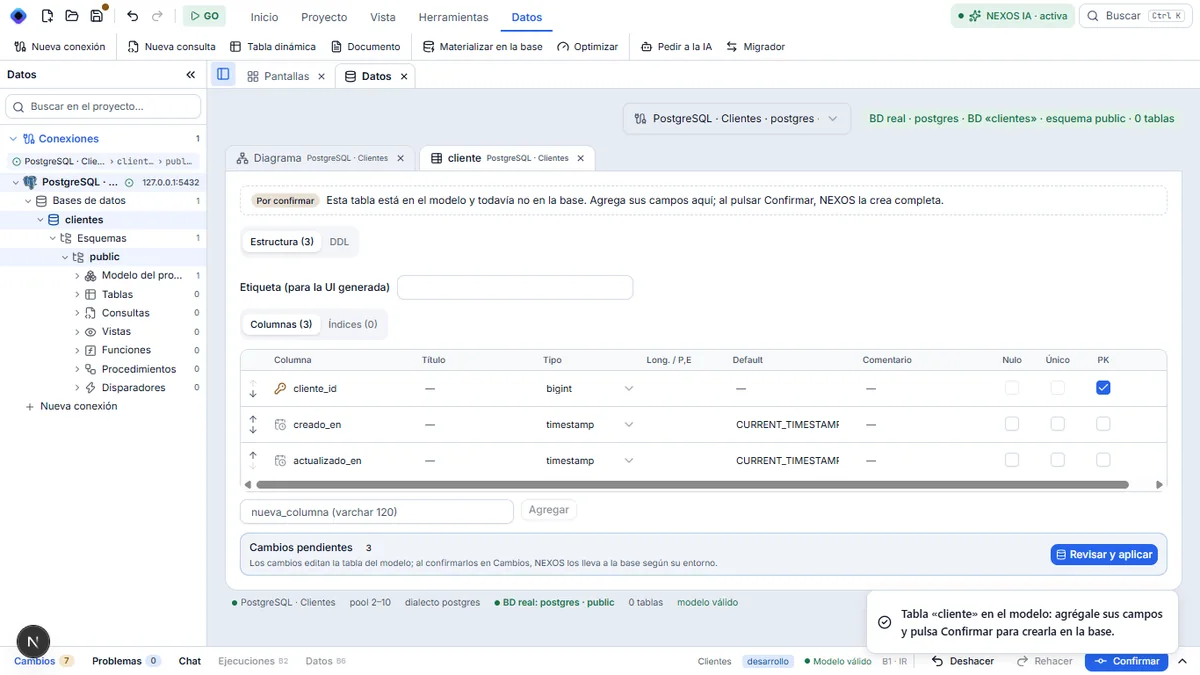
3. The table is waiting to be confirmed
The cliente table opens with the mark « Por confirmar » and the notice « Tabla «cliente» en el modelo: agrégale sus campos y pulsa Confirmar para crearla en la base ».
It already brings its cliente_id key (numbered on its own) and its two dates creado_en and actualizado_en (filled in on their own).
Result
The table exists in the project model. Not yet in the database: nothing is created until you click Confirmar. The original path verified this in PostgreSQL.
Another entry point: the + Nueva tabla button on the diagram opens the same dialog.
Next step: the table in the diagram.