Confirm the table
Goal: have Confirmar create the complete table, all at once.
1. Confirm the changes
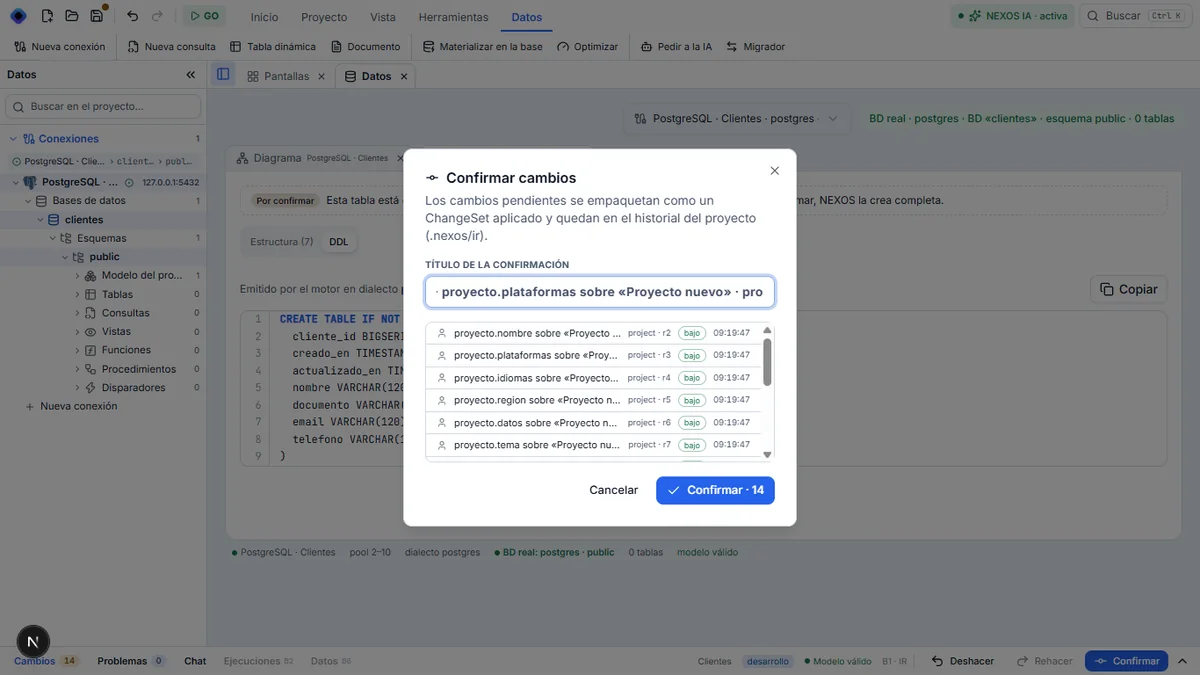
Click Confirmar, at the bottom right. Confirmar cambios opens and lists what is pending: the project settings left by the wizard, the table, and its fields.
Click Confirmar · 14. The number can vary: it is the number of pending changes, not a value to match exactly.
2. The database is up to date
The notice « Base al día · PostgreSQL · Clientes · 1 cambio » appears: NEXOS has created the table in the database. Nothing else to click, because the connection is in Desarrollo. The detail of the environments is in what NEXOS does.
The « Por confirmar » mark disappears. At the top: « 1 tabla ». At the bottom: « Estructura sincronizada ». The model and the database are identical.
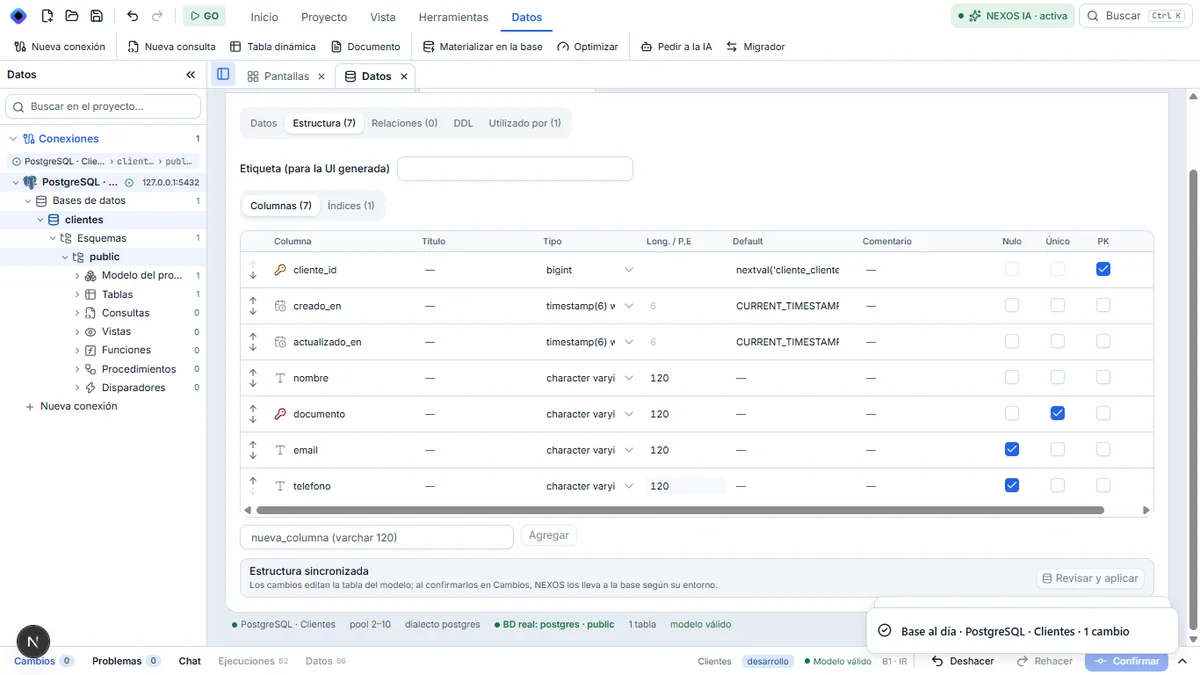
3. Look at the diagram again
In the Diagrama tab, the cliente table now has a solid border, without « Por confirmar », with its seven fields. NN means required, UQ means unique.
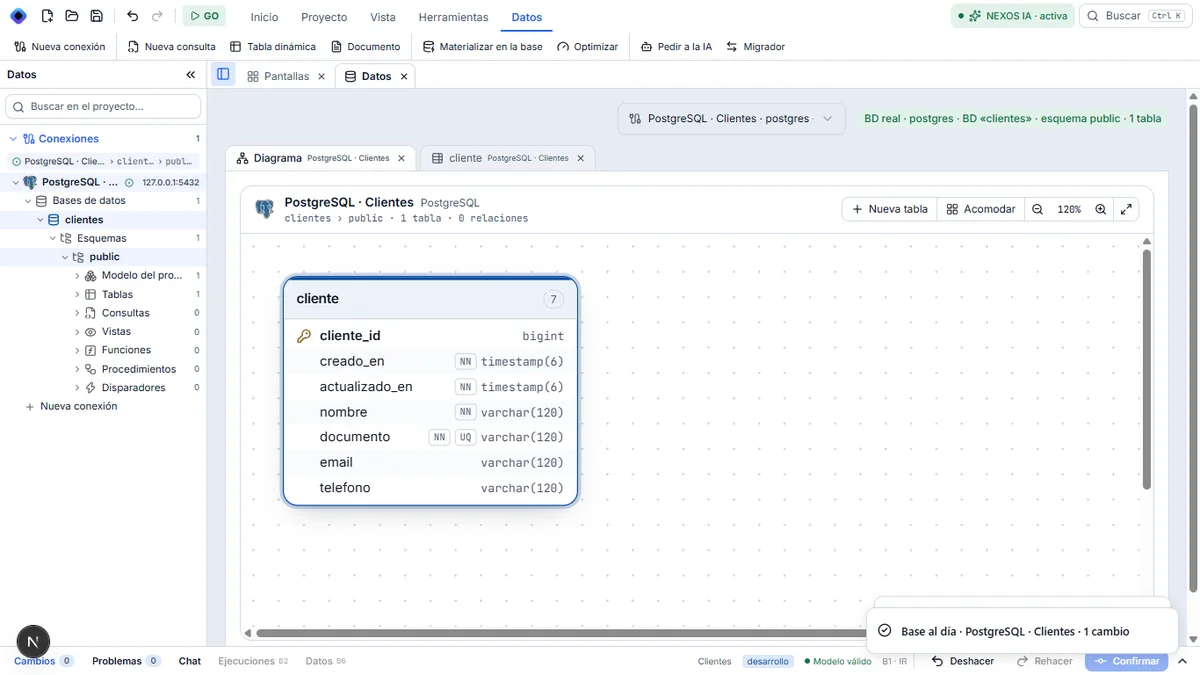
4. Return to the structure
Double-click the table in the diagram to return to its structure.
Result
In the database, the cliente table is created with all of its fields: nombre and documento required, documento unique, email and telefono optional. The original path verified this in PostgreSQL.
If something goes wrong
If Estructura still says « Cambios pendientes » after confirmation, look at Problemas at the bottom. NEXOS says there what it could not send to the database, and offers Revisar y aplicar. Detail.
Later, when the table already contains rows, a new required field cannot be added: the rows would have no value. NEXOS says so instead of failing. Give it a default value (the Default column) or leave it optional. Detail.
Next step: rename a field.